Google Drive Integration
Google Drive Integration lets you import files from Google Drive into xMagic Drive folders so your agents can use that content in retrieval-based responses.
Overview
With Google Drive integration, you can:
- authenticate with your Google account,
- select files/folders to import,
- index imported documents for retrieval,
- attach imported Drive folders to Subagents.
This is ideal for quickly bootstrapping knowledge from existing internal docs.
Setup
- Open Drive
- Create or open a target folder
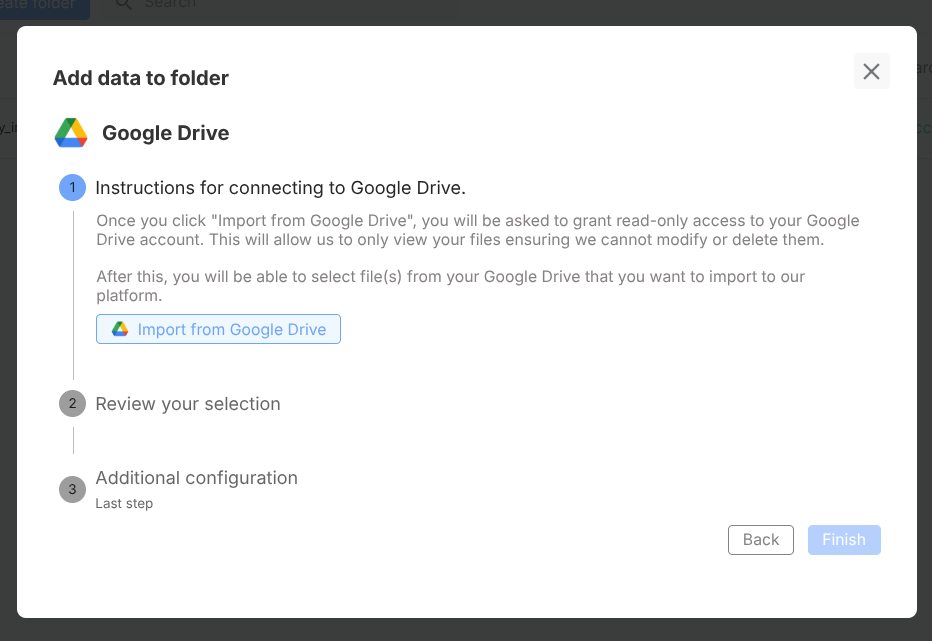
- Click Add data → Google Drive
- Sign in and authorize access
- Choose files/folders to import
- Complete import and indexing
Sync model (important)
Google Drive integration currently behaves as import/copy.
That means:
- imported content is indexed in xMagic Drive,
- future edits in Google Drive are not continuously synced,
- re-import is required to refresh changed content.
Recommended usage pattern
- Import documents by domain (HR, support, legal, product)
- Create one Drive folder per domain
- Attach each folder only to relevant Subagents
- Re-import on scheduled cadence for freshness
Common issues and fixes
“Can’t see my expected files”
- confirm correct Google account
- confirm file permissions in Google Drive
- retry import selection
“Agent still answers with old info”
- re-import updated files
- verify folder attached to active Subagent
- redeploy if behavior depends on config changes
Best practices
- Use focused folder scopes (avoid dumping everything)
- Keep document names explicit and searchable
- Re-import frequently for fast-changing docs
- Pair imports with retrieval quality checks in Preview/Interact
Example use case
HR policy assistant
- Import handbook/policy docs from Google Drive
- Attach folder to HR Subagent
- Test prompts for leave, benefits, onboarding policies
- Schedule periodic refresh imports