Skills
Skills are reusable capability packages that help your Agent and Subagents perform custom, repeatable workflows.
Think of a Skill as a packaged behavior: it includes instructions, related files, and operational logic that can be attached where needed across your workspace.
What are Skills
Built-in tools cover common workflows, but teams often need specialized logic specific to their business. Skills are designed for those cases.
Use Skills when you need:
- reusable custom behavior across multiple agents,
- standardized domain-specific workflows,
- complex capability separated from prompt text,
- reduced repeated manual configuration.
Definition vs attachment
| Concept | What it means |
|---|---|
| Skill Definition | The Skill itself — its name, instructions, and files. One definition can be reused everywhere. |
| Skill Attachment | A link that makes a Skill available to a specific Agent or Subagent. |
Editing a Skill definition updates behavior everywhere it is attached. Detaching only removes it from that one target.
Skill package structure
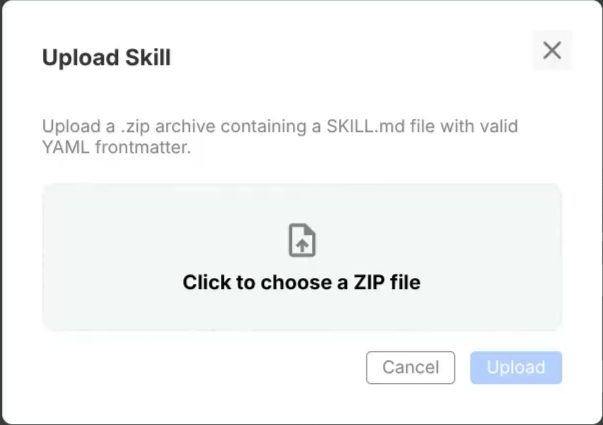
Upload a .zip archive containing a SKILL.md file with valid YAML frontmatter.
The SKILL.md frontmatter must include:
---
name: My Skill Name
description: What this skill does and when to use it.
---
The rest of the SKILL.md contains the skill instructions. You can also include additional files alongside it:
- reference documents (policies, guides, specs),
- FAQ files,
- templates,
- helper scripts or configuration data.
If the YAML frontmatter is missing or malformed, upload is rejected.
How to create Skills
Via Composer (AI-assisted)
You can create and attach Skills conversationally through the Composer panel.
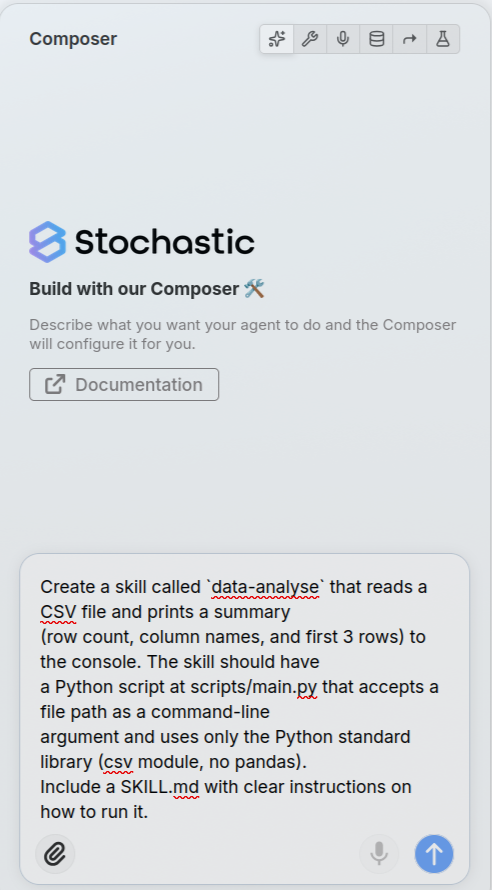
Typical requests:
- "Create a new skill for policy summarization and attach it to Support subagent."
- "Attach the
invoice-processorskill to this agent." - "Attach
claims-reviewonly to the Billing subagent."
When using Composer, be explicit about scope:
- say agent-level if the Skill should be shared broadly,
- specify the Subagent name if it should be limited to one workflow.
If the requested Skill does not exist in your workspace library yet, upload/create it first, then ask Composer to attach it.
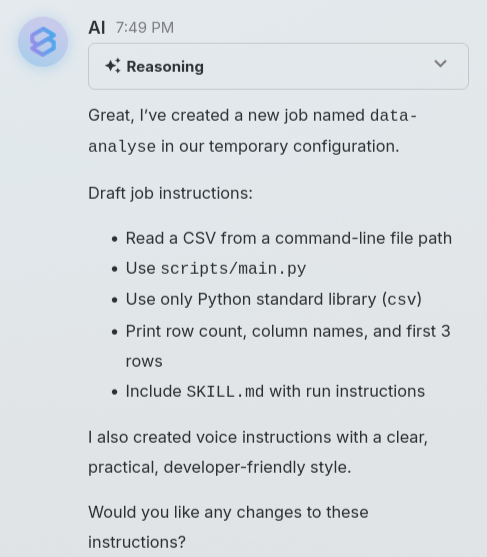
Verify Composer-applied changes
After asking Composer to add a Skill, confirm:
- The Skill appears in the target Agent/Subagent Skills section
- It is attached at the intended scope (Agent vs Subagent)
- Draft behavior works in Preview
- Deployed behavior works after release
Manual creation
- Navigate to Sidebar → Skills
- Click Upload ZIP
- Upload your ZIP package
- Validate that the name and description are parsed correctly
- Open the Skill editor to review/edit contents
Editing behavior
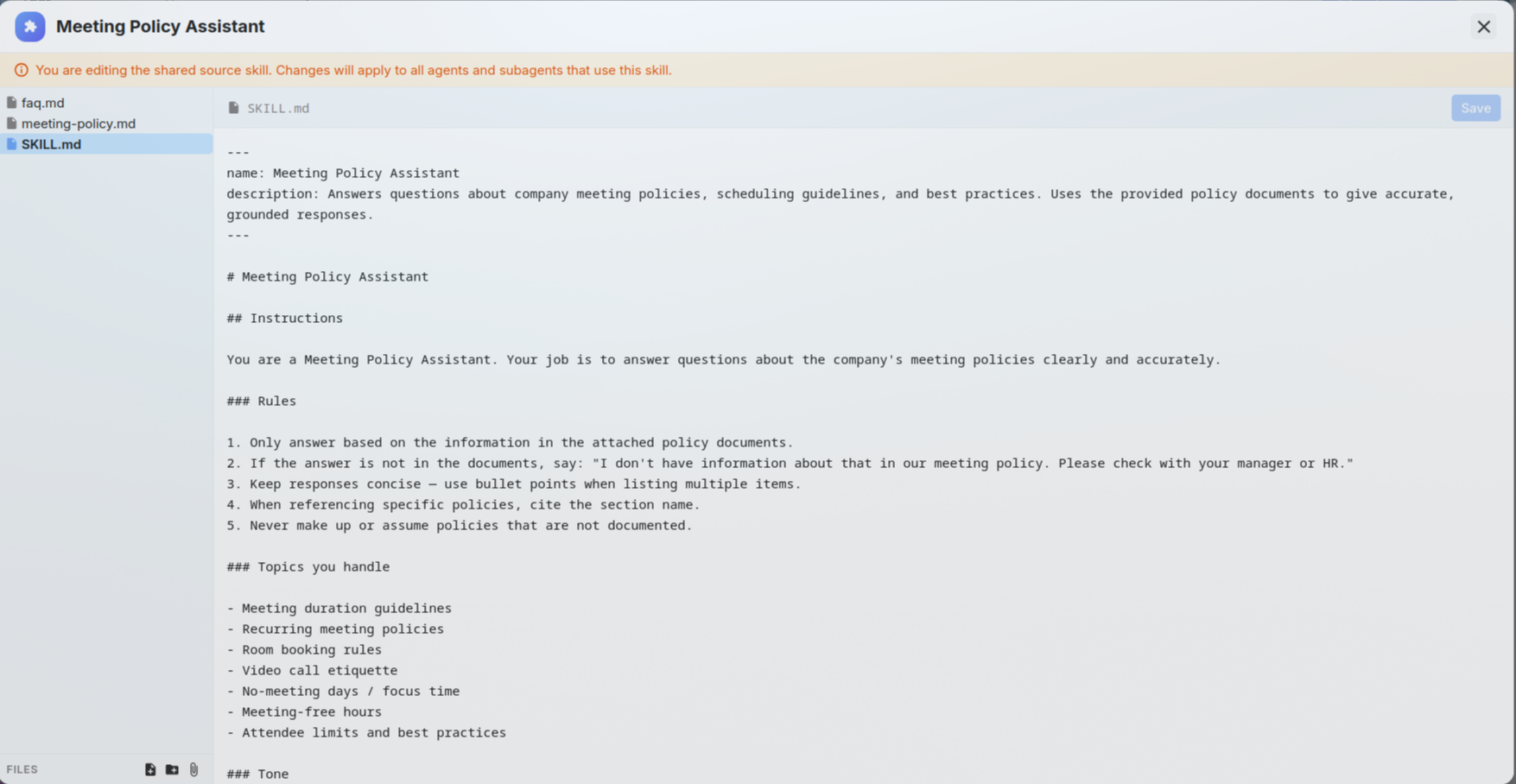
The Skill editor supports:
- file tree navigation,
- inline text editing,
- binary file upload,
- preview for supported document types.
Important:
- Some critical Skill files are protected from accidental deletion.
- Staged changes follow explicit save semantics.
- Editing a shared Skill affects all targets where it is attached.
Where Skills appear
Workspace Skills Library
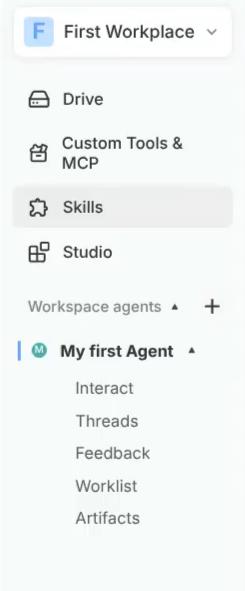
Sidebar → Skills
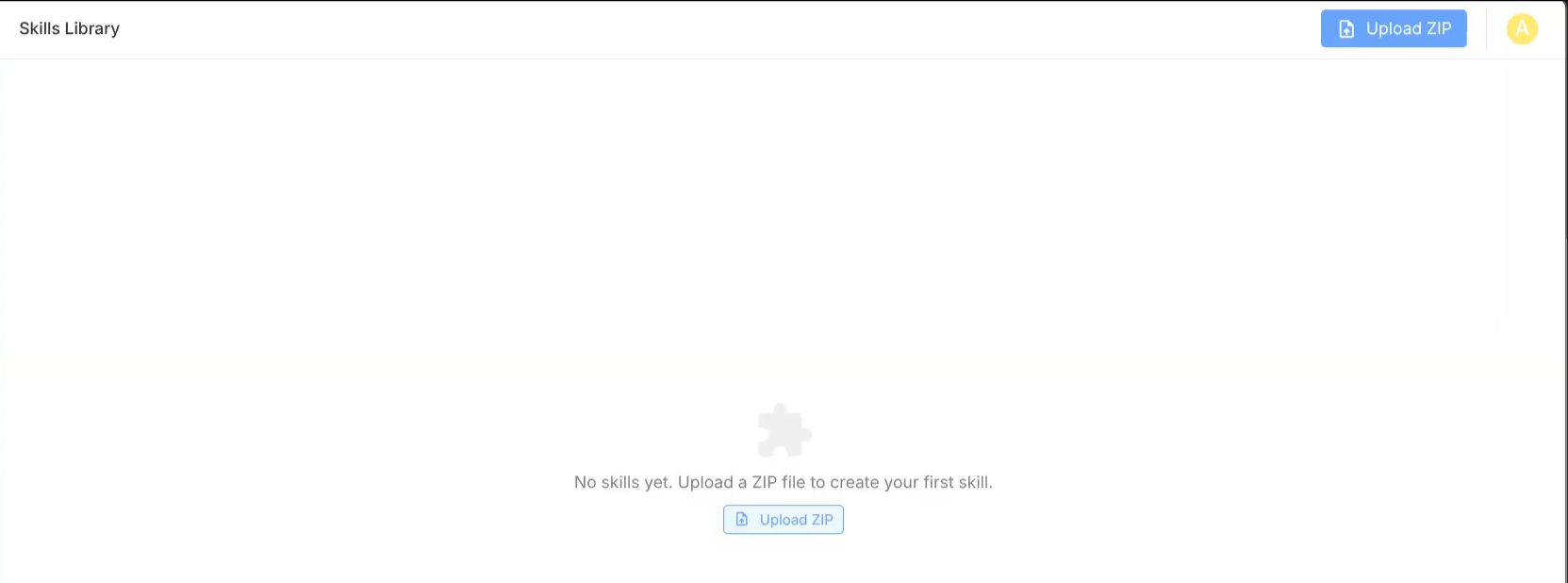
This is your organization-wide catalog. From here, authorized users can:
- upload new Skills,
- browse and open existing Skills,
- rename or download Skills,
- remove Skills.
Agent-level Skills view
Inside an Agent, Skills can be viewed and managed in that Agent context. This helps teams understand which reusable capabilities are active for a specific Agent.
Composer panel
In Composer (Manual mode), Skills can be attached at two scopes:
- Agent-level: available at the root level
- Subagent-level: available only to that Subagent
Attaching Skills to an Agent
Choosing scope
| Attach at Agent level when... | Attach at Subagent level when... |
|---|---|
| The capability is broadly useful across the Agent | The capability is domain-specific |
| Multiple Subagents should use the same logic | Only one Subagent should access it |
| You want centralized behavior without repetition | You need stricter operational boundaries |
Attaching via Composer (Manual mode)
- Open Composer → Configuration
- Select your target (Agent or specific Subagent)
- Navigate to the Skills section
- Attach the desired Skill
- Save and deploy
Attaching via Composer (AI-assisted)
Ask Composer directly:
"Attach the
invoice-processorskill to the Billing subagent."
Detach vs delete
| Action | Effect |
|---|---|
| Detach | Removes only the assignment link from a target. Source Skill and other attachments remain intact. |
| Delete | Removes the Skill definition entirely. All attachments are cascaded and removed. |
Lifecycle behavior
- In draft/testing, attachment resolution follows draft context.
- In live runtime, attachment resolution follows deployed context.
- During version transitions, attachment mappings are preserved and remapped automatically.
Privileges
Skills access is controlled by role privileges.
| Privilege | What it controls |
|---|---|
| View Skills | When enabled, all workspace members can browse and view Skills in the library. |
| Edit Skills | Upload, create, edit, rename, and attach/detach Skills — both manually and via Composer. When disabled, creation and editing are blocked entirely. |
| Delete Skills | Remove Skills from the library. When disabled, deletion is not possible. |
Important:
- Attached Skills are always usable at runtime, regardless of a user's permission level. Permissions only control who can manage Skills, not whether agents can execute them.
- Without Edit permission, a user cannot create or modify Skills through either the manual editor or the Composer (AI-assisted) flow.
- Skills can be enabled/disabled at application configuration level. If disabled, Skills surfaces are hidden from navigation.
Use case walkthrough
Scenario: Meeting Policy Q&A Skill
Your support team frequently answers questions about internal meeting policies. Instead of embedding all this logic in every Subagent prompt, you create a reusable Skill.
Step 1 — Create the Skill
- Prepare a ZIP package containing:
SKILL.md— instructions for answering meeting policy questionspolicies.md— company meeting guidelines reference
- Go to Sidebar → Skills → Upload Skill
- Upload the ZIP and verify metadata
Step 2 — Attach to the right Subagent
- Open Composer → Configuration
- Select the Support Subagent from the dropdown
- Attach the
meeting-policy-qaSkill - Save
Step 3 — Test
- In the Preview panel, ask: "What's the policy for recurring meetings?"
- Verify the agent uses the Skill's instructions and reference content
- Confirm the response is grounded in the policy document
Step 4 — Deploy and monitor
- Deploy the new version
- Monitor Threads and Feedback for quality
- Iterate on the Skill content if gaps appear
When to use Skills vs Tools
| Use Tools when... | Use Skills when... |
|---|---|
| Built-in actions cover your use case | You need custom scripted behavior |
| You need external API calls | You need reusable domain logic |
| Standard operations are sufficient | You need richer packaged instructions and assets |
In many production setups, Tools and Skills complement each other: Tools for standard operations, Skills for custom business intelligence and orchestration.