Interact
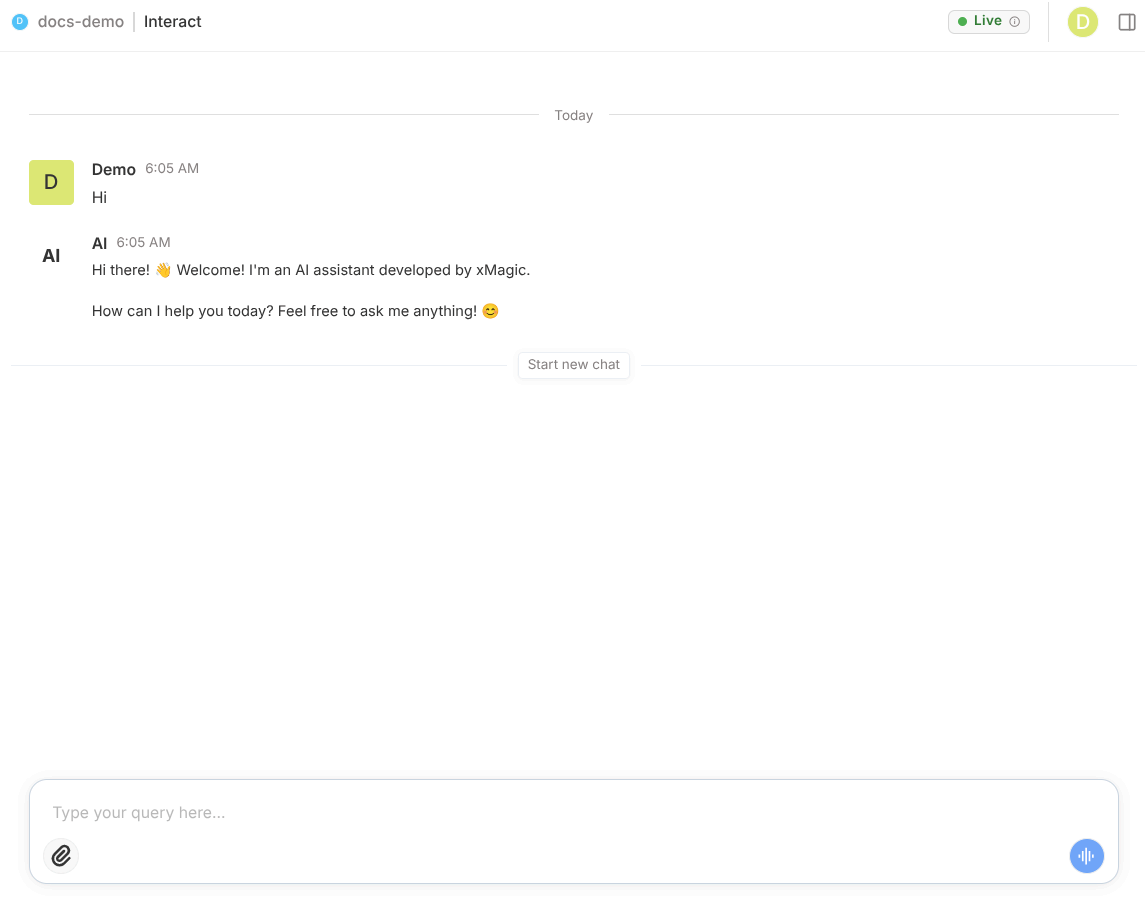
The Interact page is where you chat with the live, deployed version of your agent — exactly as your end-users experience it.
How to get there: Sidebar → expand agent → Interact
Page Layout
Interact uses a resizable two-panel layout:
| Panel | Default Width | Content |
|---|---|---|
| Main Chat | 70% | Full chat interface with the deployed agent |
| Side Panel | 30% (collapsible) | History, Memory, and Preview tabs |
Toggle the side panel with the panel icon button in the header.
Header
| Element | What It Shows |
|---|---|
| Agent name | Breadcrumb showing which agent you're chatting with |
| Deployment badge | Live (deployed) or Not Deployed |
| Panel toggle | Show/hide the right side panel |
Click the deployment badge to view full deployment details.
Chat Interface
Message Area
- Your messages appear on the right
- Agent responses appear on the left
- Markdown formatting, code blocks, and structured data render inline
Conversation Starters
At the beginning of a new chat:
- Suggested questions — Clickable tiles configured in Composer
- Shortcut buttons — Quick actions that trigger specific Subagents
Input Bar
The input bar at the bottom contains:
| Element | Icon | Function |
|---|---|---|
| File attachment | Upload files to include with your message | |
| Shortcut chip | Trigger a configured shortcut/quick action | |
| Voice button | Switch to voice mode | |
| Text field | — | Type your message |
| Send | → | Submit your message |

Voice Mode
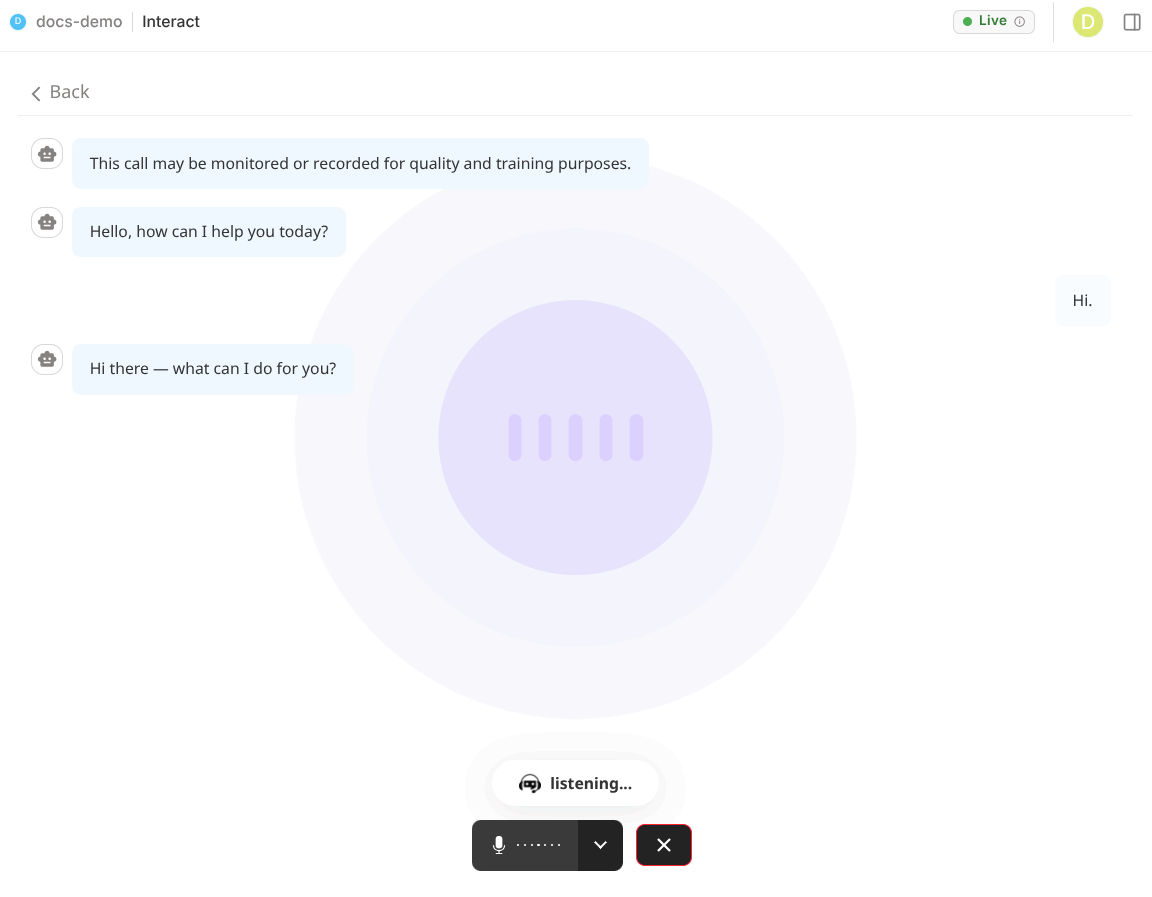
Click the voice button to activate voice:
- The agent listens to your speech in real-time.
- Your speech is transcribed automatically.
- The agent responds with text-to-speech (TTS).
- A visual voice animation shows when the agent is speaking.
Click the button again to return to text mode.
Execution Reasoning
After some responses, an expandable Reasoning card appears:
- Which Subagent was triggered
- Execution timing (how long each step took)
- Tool calls made (and any failures)
- Step-by-step logic the agent followed
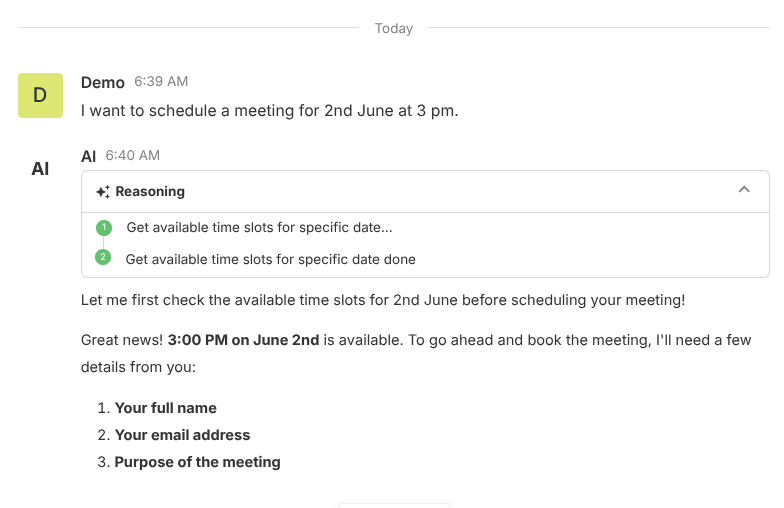
Click the card to expand full details. This is invaluable for debugging and understanding agent behavior.
Side Panel
History Tab
A searchable log of all your conversations with this deployed agent:
| Control | What It Does |
|---|---|
| Search bar | Filter by title or content keywords |
| New chat | Start a blank conversation (existing ones preserved) |
| Click a conversation | Load its transcript into the main chat |
| ⋯ Three-dot menu | Rename or Delete the conversation |
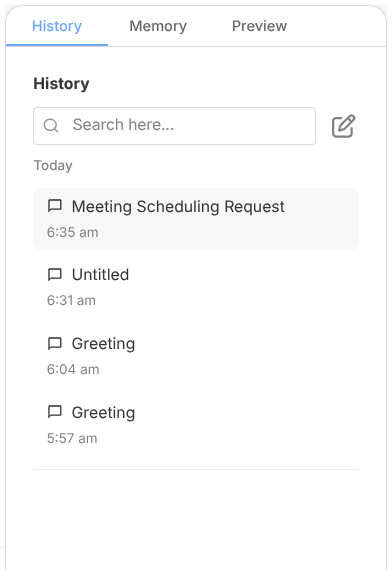
Conversations reflect the deployed version at the time they were created. Previous transcripts remain visible after redeployment.
Memory Tab
Shows the agent's procedural memory — information learned from approved feedback and interactions. Displayed as formatted text.
Preview Tab
When the agent generates a document or structured output, it appears here for in-line preview (PDFs, JSON, spreadsheets).
Important Notes
| Rule | Details |
|---|---|
| Always deployed version | Interact uses the most recently deployed configuration — not drafts |
| Draft testing | Use Composer → Preview (left panel) to test unsaved changes |
| External conversations | Chats from public links appear in Threads, not here |