🏢 Workspace Settings

A Workspace is the top-level container in xMagic. Everything—Agents, Jobs, Knowledge Bases, Tools, billing settings, and member privileges—lives inside a Workspace.
- Single source of truth – Each Workspace stores its own data, keeping agents and knowledge bases visible only to its members.
- Role-based access – Members join as Admins or Members; granular privileges determine who can deploy agents, manage billing, or invite users.
- Shared resources – Phone numbers, Custom Tools, and Global Knowledge folders are configured once and reused across Agents in the Workspace.
- Centralized billing – Plans, payment methods, and invoices apply to the whole Workspace.
- Collaboration hub – Conversation logs, tasks, and analytics are aggregated so teams can monitor performance and iterate together.
Use this page to understand every section of the Workspace panel.
Open it by clicking Settings → Workspace in the top-left profile menu.
1. General
Basic company information—Workspace name.
2. People
Manage who can access the workspace.
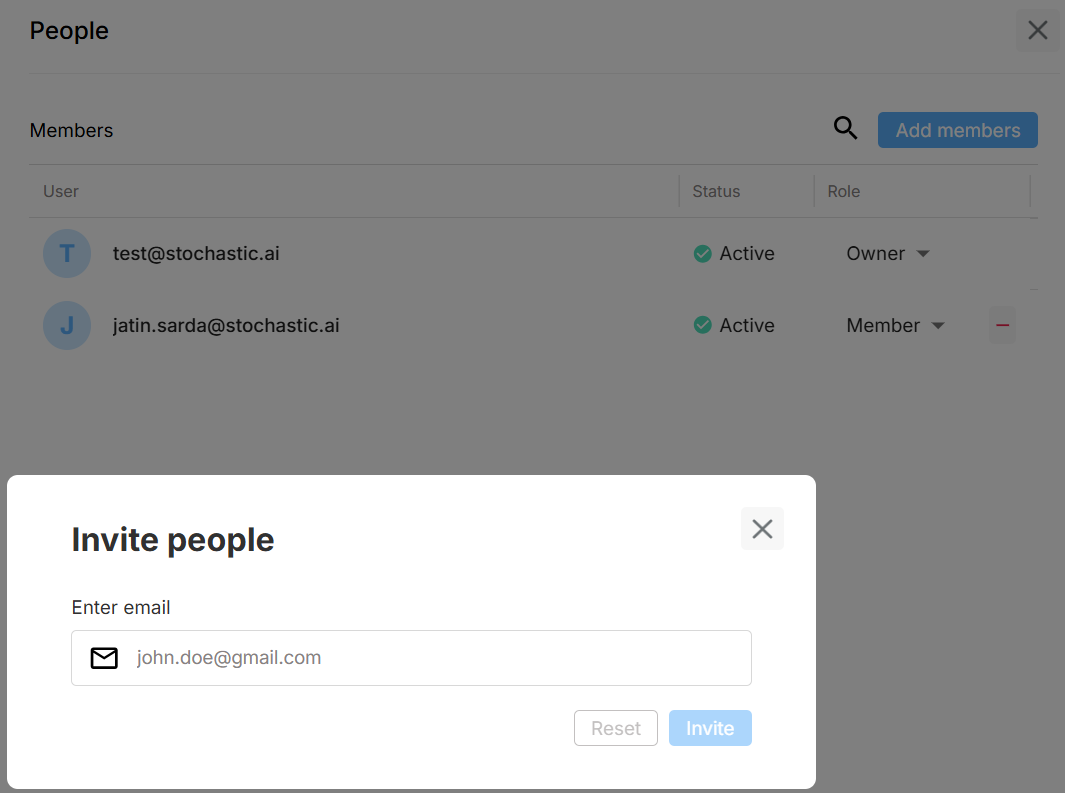
| Feature | Description |
|---|---|
| Invite member | Send email invites—select Admin or Member. |
| Role column | Change a user’s role at any time. |
| Status | Shows Pending until the invitee accepts. |
| Remove | Immediately revokes workspace access. |
3. Privileges
Fine-grained permission matrix for each role.
| Category | What you can toggle |
|---|---|
| Agent Management | Create, update, delete private agents. |
| Knowledge Base | Add, edit, or remove folders and files. |
| Billing | View invoices, change plans, add payment methods. |
| Member Management | Invite, remove, or change member roles. |
Both Admins and Members start with default permissions enabled, and you can further adjust them under the Privileges panel.
Workspace Invite vs Agent Invite
There are two distinct ways to bring people into your workflow in xMagic: inviting them to the Workspace or inviting them to an individual Agent.
Workspace Invite
Inviting someone to your Workspace gives them access to all Agents that have been shared with that Workspace, according to the privileges set for their role.
They will also see any public agents.
If you want to restrict this visibility, toggle off:
Privileges → View shared workspace agents
The View / Update / Delete private agents privileges allow you to override these defaults by controlling whether a role can access agents that are not shared with the Workspace i.e private agents.
Agent Invite
An Agent invite does not add the person to your Workspace.
Instead:
- They only gain access to the specific Agent you shared.
- The Agent appears inside their own Workspace, marked as an external shared agent.
- They do not inherit your workspace resources, privileges, or knowledge bases.
This is ideal when collaborating with contractors, clients, or external teammates who do not need full workspace access.
4. Phone
Purchase and manage dedicated phone numbers for outbound call Jobs.
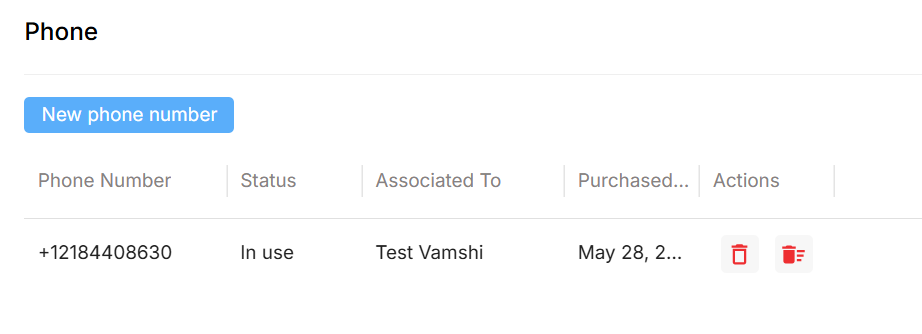
| Action | Detail |
|---|---|
| Buy number | Purchase phone numbers to attach to Jobs. |
| Release | Remove an unused number (billing stops next cycle). |
| Delete | Permanently delete a number. |
5. Pricing
Compare plans, view invoices, and update payment details.
| Section | Usage |
|---|---|
| Plans | Upgrade or downgrade instantly—prorated billing applies. |
| Payment Methods | Add or remove credit cards and configure the default method. |
Need help? Head to Contact Support.